

Dynamics 365 Customer Insights finally gets modern reCAPTCHA support, replacing an outdated system that frustrated users and let spam through for years.
Microsoft released the update in February 2026, with the old system being retired by June 2026. Visitors now tick an “I’m not a robot” checkbox rather than deciphering distorted characters.
This article walks through the configuration steps and flags the problems we encountered during our own setup.
Why reCAPTCHA matters for your Customer Insights forms
Beyond the improved user experience, there’s a real cost to inadequate spam protection. Research has shown that Spam is costing businesses millions each year. Additionally, data from ClearTrust tells us 4 in 10 form submissions are invalid or bot generated.
Every fake form submission clutters your Dataverse tables, skews your conversion metrics, and sends your team chasing ghosts instead of real prospects.
This solution offers enhanced security against bot and spam submissions, which means cleaner data, more accurate analytics, and your sales team focusing on actual opportunities.
A poor form experience also means less conversions. Why prepare well optimised landing pages and possibly allocate significant ad spend, only to fall at the final hurdle?
Take a peek at how the old captcha experience stacks up against the new reCAPTCHA integrated form.
Let’s explore how reCAPTCHA works with Customer Insights and some guidance on setting it up.
Understanding your reCAPTCHA options
By default, this solution relies on integrating with Google’s reCAPTCHA Version 2 – the familiar “I’m not a robot” checkbox. For those who need a more complex validation system, Version 3 is available but requires a custom plugin to be built to validate form submissions on the back end. For more information on this, you can visit Microsoft’s documentation, but this article will focus on the default Version 2 method.
Setting up your Google Project for reCAPTCHA
First you need to create your project on Google’s reCAPTCHA admin console. Add in your website domain name and choose Version 2. More detailed instructions on this process can be found in Google’s documentation.
It’s worth taking some time to work through this carefully, as choosing the wrong option can prevent it working on your website. You will need to assign it to a project and if necessary for websites with large traffic volumes, enable billing, although we feel the free option is quite generous.
You’ll also be faced with the challenge difficulty options: easy, balanced and hard. We’d start with balanced, but if you’re still finding you are getting a lot of spam, you may try increasing it to hard. Remember, harder challenges might stop more bots but could also frustrate legitimate users.
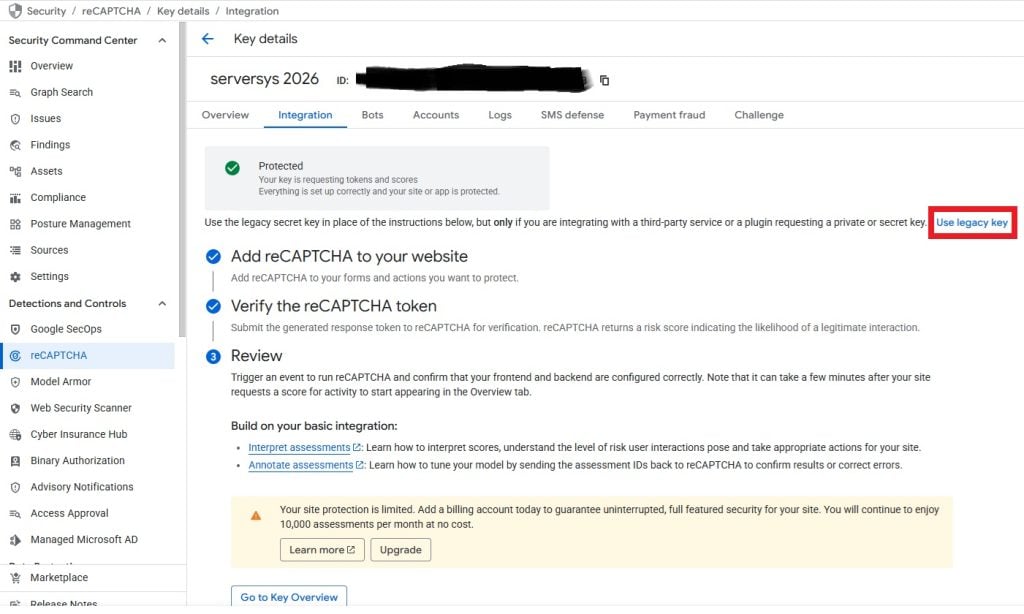
Once you’ve created your reCAPTCHA, you’ll be provided with an ID and a site key – this is what Customer Insights requires for integration.
Navigate to the integration tab and you’ll find the ID at the top of your screen. You can find the key by clicking the ‘Use legacy key’ link (it’s not that easy to notice!)
Connecting reCAPTCHA to Customer Insights
Once you have both keys, navigate to Customer Insights > Settings > Form Settings (typically found near the bottom of the left-hand menu).
Next, navigate to the reCAPTCHA tab and apply the ID to the Site Key field, and the key to the Secret Key field. Yes, the terminology is slightly different between Google and Microsoft – worth confirming you’ve got them in the right places.
Make sure you have status set to active and click save.

Adding reCAPTCHA to Customer Insights Forms
Next is the easy bit! Simply navigate to your Customer Insights forms, and on the elements window panel, drag reCAPTCHA onto your form.
Fortunately, this doesn’t require you to add or amend any code in your form or website. If you are supplied a code widget by Google to implement it, ignore it. It isn’t required for Customer Insights and may cause you issues.
Make sure you don’t choose Captcha, which is the legacy option. By May 2026 this will be removed from the editor entirely anyway.
When you’re happy with the form, go ahead and hit publish. When opening the live form, if it’s working you should see an ‘I am not a robot‘ tick box. If not, you may see an error such as:
ERROR for site owner:
Invalid domain for site key
We realised during this process that we were getting this error on the standalone form, but not the embedded JavaScript. This was because it’s tied to the domain you enter during setup on the Google admin console.
Important note: If you need standalone forms provided by Microsoft, the domain should look something like this: assets-eur.mkt.dynamics.com
Testing your reCAPTCHA Customer Insights installation
It’s important to ensure your reCAPTCHA forms are working, or you could be inviting bot and spam activity, or breaking your forms and losing enquiries and sales. Given that spam form submissions can eat up significant sales resources – we’ve seen teams waste 5-10 hours per week on fake leads alone, so it’s worth getting this right.
If all URLs are having the same issue such as the error above, you’ll likely need to revisit your configuration. It took us a little while for it to be operational, so if you believe you set it up correctly, you might simply need to wait. Some have reported 15-30 mins, although we found this took around an hour.
Additionally, even when we could see it set up correctly on the live form, Google hadn’t fully recognised its status as ‘Protected’ for a few days on the Google reCAPTCHA admin console.
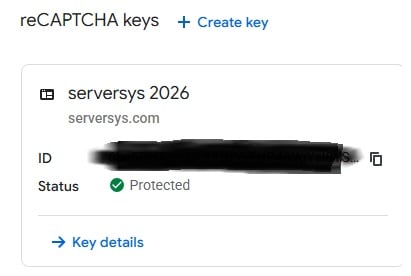
Even when it appears operational, we strongly recommend testing the behaviour of all your forms, in all places to make sure it’s working appropriately.
A few things to test:
- Can you submit the form without ticking it?
- Does the reCAPTCHA challenge appear consistently across different browsers? (Chrome, Firefox, Safari, Edge)
- Does it work correctly on mobile devices? Test on both iOS and Android, as the reCAPTCHA experience can differ from desktop.
- What happens when you fail the verification? Intentionally fail the challenge to ensure appropriate error messages appear and the form doesn’t submit.
- Does it function properly with ad blockers or privacy extensions enabled? Some users may have these tools that could interfere with reCAPTCHA.
- Are the forms accessible? Test with screen readers to ensure the reCAPTCHA doesn’t create accessibility barriers.
- Does it work correctly after a session timeout? If a user leaves the form open for an extended period, does the reCAPTCHA still validate properly?
- Are submission confirmation messages displaying correctly? Ensure successful submissions show appropriate feedback after passing reCAPTCHA.
What are the alternatives to using reCAPTCHA in Customer Insights forms?
We recognise that some organisations may not wish to use Google services or are facing issues with this implementation.
Going back to the original Captcha may serve as a temporary solution, but it will be completely removed from Customer Insights in June 2026. Which is not particularly appealing.
Simply not using one puts you at the mercy of spam which will clog up your Dataverse table and leave you vulnerable to security breaches. If your website is secure or using security services such as Cloudflare security rules, you may mitigate some of this and filter out the bulk of the bot traffic. But it’s certainly not bullet proof.
You could also explore alternative third-party spam filtering solutions such as Cloudflare’s Turnstile. We tried this ourselves, and whilst it worked, it was much slower to load due to script bottlenecks. These aren’t technically supported by Microsoft though, so you’re reliant on your own knowledge and the documentation of the third-party provider.
We found that the process was fiddly enough without complications like the above, so our recommendation must be using Google’s reCAPTCHA service as of March 2026. It does require some configuration, but it’s far easier than the alternative, and more robust than relying on your website’s existing infrastructure to filter out spam submissions.
Why This Matters Beyond Spam Prevention
Every spam submission that slips through does more than clutter your sales lead table. It skews your analytics and wastes time chasing fake leads and deleting entries.
We’ve seen organisations spend hours each week manually cleaning spam from their database, time that could be spent on genuine customer engagement.
With the legacy system being removed by June 2026, this decision is coming regardless. The few hours it takes to configure reCAPTCHA properly will prevent months of data-quality issues and protect the integrity of your Dynamics 365 environment.
Need Help With Your reCAPTCHA Setup?
If you would rather not navigate the Google configuration, domain mapping, and testing process yourself, we can handle it.
We have already been through the setup, including the quirks documented in this article, and can quickly get your forms protected.
For organisations that want to go further, our managed services cover ongoing form management, data quality monitoring, and broader Customer Insights configuration. Contact us to discuss your requirements.