
Security roles are the foundation of a Dynamics 365 system, ensuring that people see only the data they need to do their jobs and keeping sensitive information safe.
Yet for many Dynamics 365 administrators, the security model is something inherited rather than designed.
It has grown organically, with permissions added reactively until the setup becomes a tangle of roles that nobody is confident enough to unpick. Someone changes jobs and keeps their old access. A new starter gets cloned from the wrong user. A quick fix from two years ago is still in place because removing it feels risky.
The result is usually visible at both ends: users who cannot access records they need and those who can see far more than they should.
This article explains a more structured approach to building and managing security roles, based on our experience helping organisations get this right.
What Security Roles Control
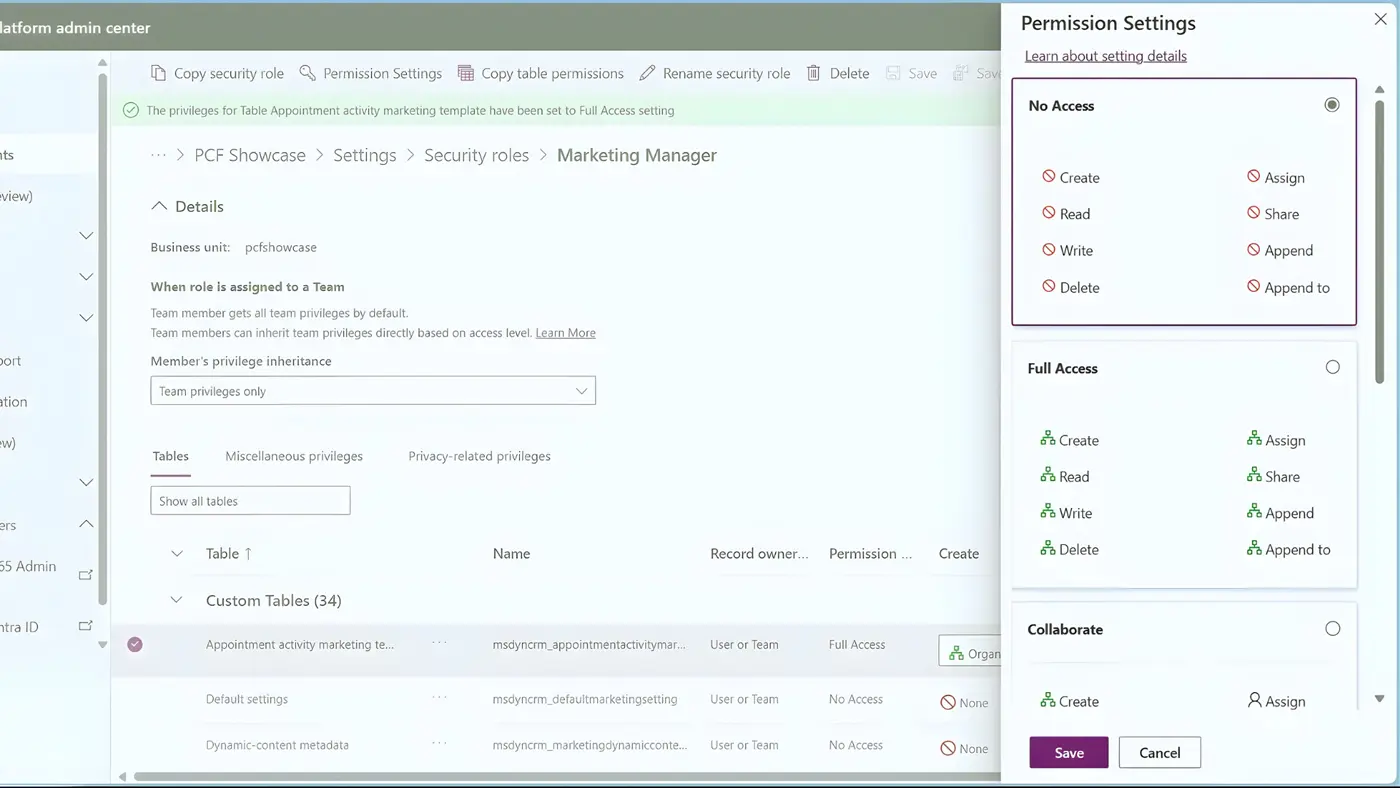
Security roles are managed through the Power Platform Admin Centre, where administrators can create, edit, and assign roles across their environment.
At its core, a security role is a set of permissions that defines what a user can see and do within Dynamics 365.
These rights break down into two main components: privileges and access levels.
Privileges
These are the specific actions a user can take, such as creating, reading, writing, or deleting records. These apply to different tables (or ‘entities’) across your system, like Accounts, Contacts, or Opportunities.
Three other privileges are worth understanding, as they can cause misconfiguration.
Append and Append To work as a pair, and both must be present for record associations to save correctly.
Assign allows a user to transfer ownership of a record to a colleague – without it, any process that relies on handover will break.
Share allows a user to grant another person access to a record without transferring ownership. If users are regularly sharing records to work around access restrictions, it is usually a sign that the underlying role structure needs revising.
Access Levels
Access Levels define the scope of those privileges. A user might be able to read an opportunity, but the access level determines which opportunities they can read. Microsoft provides five levels of access that work in a hierarchy.
| Access Level | Scope |
|---|---|
| User | The user can only act on records they own or that are shared with them directly. |
| Business Unit | The user can act on any record within their specific business unit. |
| Parent: Child Business Units | The user can act on records in their business unit and any child units below it. |
| Organisation | The user has full access to act on all records across the entire organisation, regardless of who owns them. |
| None | The user has no access at all. |
For example, a salesperson might have ‘User’ level access to create and edit opportunities, allowing them to manage their own pipeline. A sales manager would have ‘Business Unit’ access to see the pipelines of everyone on their team.
Permission Settings
When configuring a security role, you can also apply predefined permission settings to a table rather than configuring each privilege individually.
Options such as Collaborate (view all, edit own) and Reference (view only) provide a useful starting point, though most roles will end up with at least some tables set to Custom as requirements become more specific.
When Security Roles Go Wrong
When permissions are too restrictive, people can’t complete actions or access the information they need. They end up keeping their own records, whether that is a spreadsheet, a shared folder, or notes in an inbox. Once that happens, the data in Dynamics stops being the trusted version.
If permissions are too broad, you expose the business to unnecessary risk. Granting someone an Administrator role to solve a minor access issue is a dangerous shortcut. It can lead to accidental data deletion, compliance breaches if sensitive information is exposed, and a system that becomes progressively harder to manage.
A Better Approach to Building Security Roles
Instead of creating roles from scratch or assigning overly broad permissions, we often recommend a more structured approach.
Start by Cloning an Existing Role
Dynamics 365 includes a set of standard, out-of-the-box roles. In our experience, the Salesperson role is a solid starting point for most custom roles, even for non-sales users.
We find it contains a good baseline of the essential system permissions needed for a user to navigate and use the system effectively. Cloning this role and then tailoring it to specific needs is far more reliable than starting with a blank canvas.
Design Around a Core Role Concept
Keeping the number of distinct security roles to a minimum makes these models far easier to manage.
We advise clients to design their security model around a ‘core role’ concept. This involves creating a baseline role that contains the minimum set of permissions every user in the organisation needs. From there, you can create additional, more specific roles that grant extra permissions for different job functions. Users are then assigned the core role plus any other roles relevant to their position. Because permissions are cumulative, this layered approach is flexible and straightforward to administer.
Assign Roles to Teams, Not People
Whenever possible, assign security roles to Teams rather than directly to individual users.
When a user joins a Team, they automatically inherit all the security roles assigned to that Team. This makes onboarding a new team member simple and ensures consistency.
If a role’s permissions need to be updated, you change it once for the Team, and everyone in that Team gets the update. It removes the risk of individuals having inconsistent permissions and dramatically reduces the administrative overhead.
Keeping Your Security Roles Updated
A Dynamics 365 security model is not a one-time setup. As your organisation changes, people switch jobs, and new teams form, your security roles can quickly become outdated.
A role that was effective two years ago might now grant a user access to data they no longer need, or it might be missing permissions for new functions they have taken on.
Roles that are never reviewed tend to accumulate permissions over time. Someone changes jobs, keeps their old access, and six months later, nobody is quite sure what they can see or why.
At least annually, or whenever significant organisational changes occur, it is worth auditing your roles and their assignments. Do they still align with your business processes and governance policies? Are the permissions still appropriate for each job function?
Reviewing a security model that has been in place for years is rarely straightforward, particularly when others depend on it, and the consequences of getting it wrong are visible. If you would like a second pair of eyes on your current setup, we are happy to help.